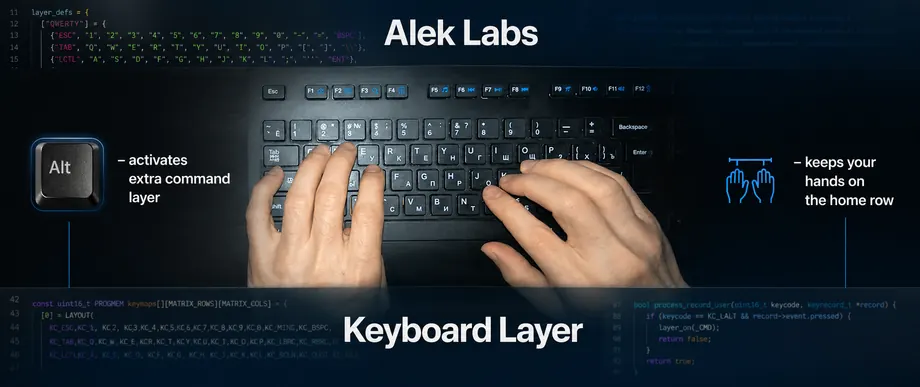
Alek Labs Keyboard Layer
Ergonomic keyboard commands for more productive Windows programming sessions.
Alek Labs Keyboard Layer is an AutoHotkey script that keeps QWERTY intact while adding a compact editing layer for navigation, selection, deletion, clipboard operations, undo, redo, and Enter. It is designed to reduce hand travel to Enter, arrow keys, Home, End, Delete, Backspace, and Ctrl-based shortcuts during writing and programming.
The core idea is simple: Caps Lock becomes Enter, and Left Alt becomes a temporary command-layer modifier. While Left Alt is held, nearby keys perform cursor movement, word-level navigation, line-level navigation, selection, deletion, and editing commands. Navigation is mostly operated by the right hand near the home position, while the left thumb activates the layer with Alt. Shift modifies navigation into selection, and Caps Lock modifies the Alt layer into deletion.
Clipboard operations are also moved closer to the home position. Copy, paste, cut, undo, redo, and select-all are available through Alt-based shortcuts on the left side of the keyboard, so frequent editing commands can be executed without repeatedly stretching to Ctrl combinations or moving the hands away from the main typing area. This is especially useful during programming sessions, where small edit operations are performed continuously across code editors, terminals, search fields, commit messages, documentation, and browser input fields.
The workflow remains non-modal: there is no persistent navigation mode, only short command chords that work inside ordinary Windows applications.
Source code
https://github.com/aleklabs/keyboard-layer
Installation
Alek Labs Keyboard Layer requires AutoHotkey v2 on Windows.
Recommended installation
- Install AutoHotkey v2.
- Download the latest release: aleklabs-keyboard-layer.zip.
- Extract the ZIP file.
- Run
aleklabs-keyboard-layer.ahk.
The release package includes the script, tray icon, README, and MIT license.
Start automatically with Windows
To start the script after login:
- Press
Win + R. - Enter
shell:startup. - Create a shortcut to
aleklabs-keyboard-layer.ahkin the opened Startup folder.
Hotkeys
| Hotkey | Action | Problem solved |
|---|---|---|
CapsLock |
Enter |
Moves Enter to a large, accessible left-side key and reduces right-pinky extension toward the keyboard edge. |
Alt + I |
Move cursor up | Keeps vertical navigation near the home position instead of using the arrow-key cluster. |
Alt + K |
Move cursor down | Keeps vertical navigation near the home position instead of using the arrow-key cluster. |
Alt + H |
Move cursor one character left | Keeps character-level navigation inside the main typing area. |
Alt + ; |
Move cursor one character right | Keeps character-level navigation inside the main typing area. |
Alt + J |
Move cursor one word left | Replaces Ctrl + Left with a home-position command-layer chord. |
Alt + L |
Move cursor one word right | Replaces Ctrl + Right with a home-position command-layer chord. |
Alt + U |
Move to beginning of line | Avoids reaching for Home. |
Alt + O |
Move to end of line | Avoids reaching for End. |
Alt + Shift + I |
Select upward | Replaces Shift + Up without using the arrow-key cluster. |
Alt + Shift + K |
Select downward | Replaces Shift + Down without using the arrow-key cluster. |
Alt + Shift + H |
Select one character left | Keeps character selection near the home position. |
Alt + Shift + ; |
Select one character right | Keeps character selection near the home position. |
Alt + Shift + J |
Select one word left | Replaces Ctrl + Shift + Left with a home-position command-layer chord. |
Alt + Shift + L |
Select one word right | Replaces Ctrl + Shift + Right with a home-position command-layer chord. |
Alt + Shift + U |
Select to beginning of line | Avoids reaching for Shift + Home. |
Alt + Shift + O |
Select to end of line | Avoids reaching for Shift + End. |
Alt + CapsLock + H |
Delete character left / Backspace |
Deletes leftward without reaching for Backspace. |
Alt + CapsLock + ; |
Delete character right | Deletes rightward without reaching for Delete. |
Alt + CapsLock + J |
Delete word left | Replaces Ctrl + Backspace with a directional deletion chord. |
Alt + CapsLock + L |
Delete word right | Replaces Ctrl + Delete with a directional deletion chord. |
Alt + CapsLock + U |
Delete to beginning of line | Provides line-head deletion without manual selection followed by Delete or Backspace. |
Alt + CapsLock + O |
Delete to end of line | Provides line-tail deletion without manual selection followed by Delete or Backspace. |
Alt + Q |
Copy | Replaces Ctrl + C and reduces repeated left-pinky Ctrl usage. |
Alt + W |
Paste | Replaces Ctrl + V and reduces repeated left-pinky Ctrl usage. |
Alt + S |
Cut | Replaces Ctrl + X and reduces repeated left-pinky Ctrl usage. |
Alt + D |
Undo | Replaces Ctrl + Z and reduces repeated left-pinky Ctrl usage. |
Alt + E |
Redo | Replaces Ctrl + Y and reduces repeated left-pinky Ctrl usage. |
Alt + A |
Select all | Replaces Ctrl + A and reduces repeated left-pinky Ctrl usage. |
Alt + Backspace |
Delete previous word | Provides direct word deletion without using the standard Ctrl + Backspace chord. |